
The command line is not going away. Whether you are deploying containers, managing infrastructure, pushing code, or automating workflows, the terminal remains the fastest and most precise way to get things done. But learning CLI commands has always had the same problem — you need to install tools, configure environments, and risk breaking things just to practice.
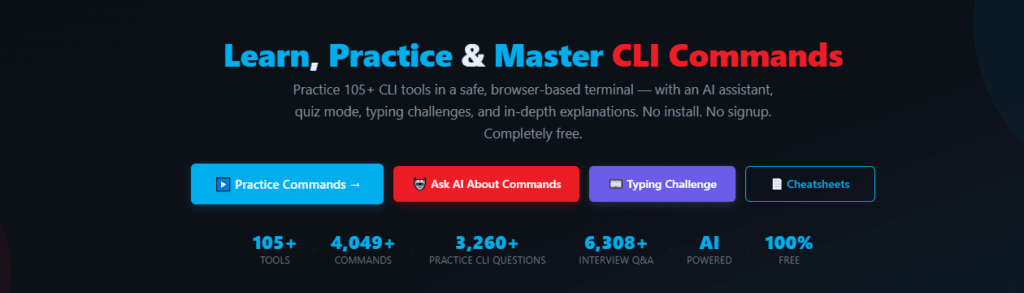
Command Playground changes that. It is a free, browser-based platform built by TechnoScripts where you can learn, practice, and master commands for over 105+ CLI tools — from Git and Docker to Kubernetes, Terraform, AWS CLI, and dozens more. Nothing executes on any server or on your device. There is no real terminal behind it. You type commands, get instant feedback, read detailed explanations, and build muscle memory — all without leaving your browser.
No install. No account. No credit card. Just open it and start typing.
Table of Contents
Everything in One Place
Most developers piece their CLI learning together from a dozen sources — one site for cheatsheets, another for practice, a YouTube playlist for explanations, a PDF from somewhere else for interview prep. Every tool has its own scattered ecosystem of learning resources.
Command Playground puts it all under one roof — interactive terminal practice, timed quizzes, typing drills for muscle memory, an AI assistant that speaks your language, downloadable cheatsheet PDFs, interview Q&A, community comments, and a feedback system — for every single tool. No tab-hopping. No app-switching. No separate download for each technology. One platform, one browser tab, everything you need.
The Tools Directory: 105+ CLI Tools in One Place
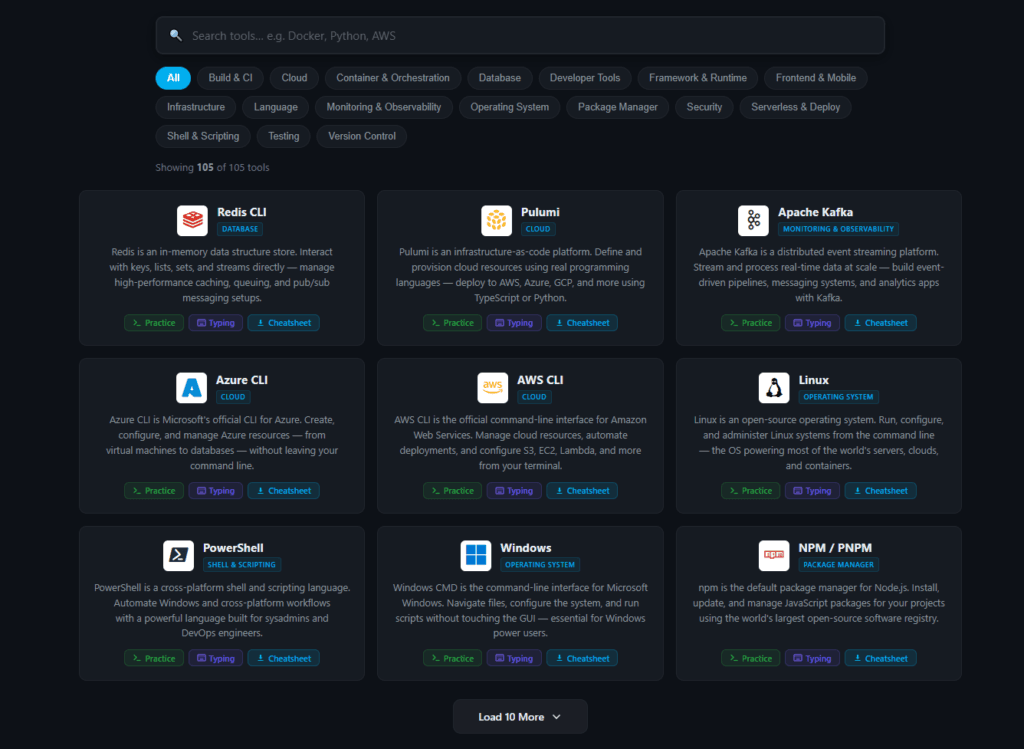
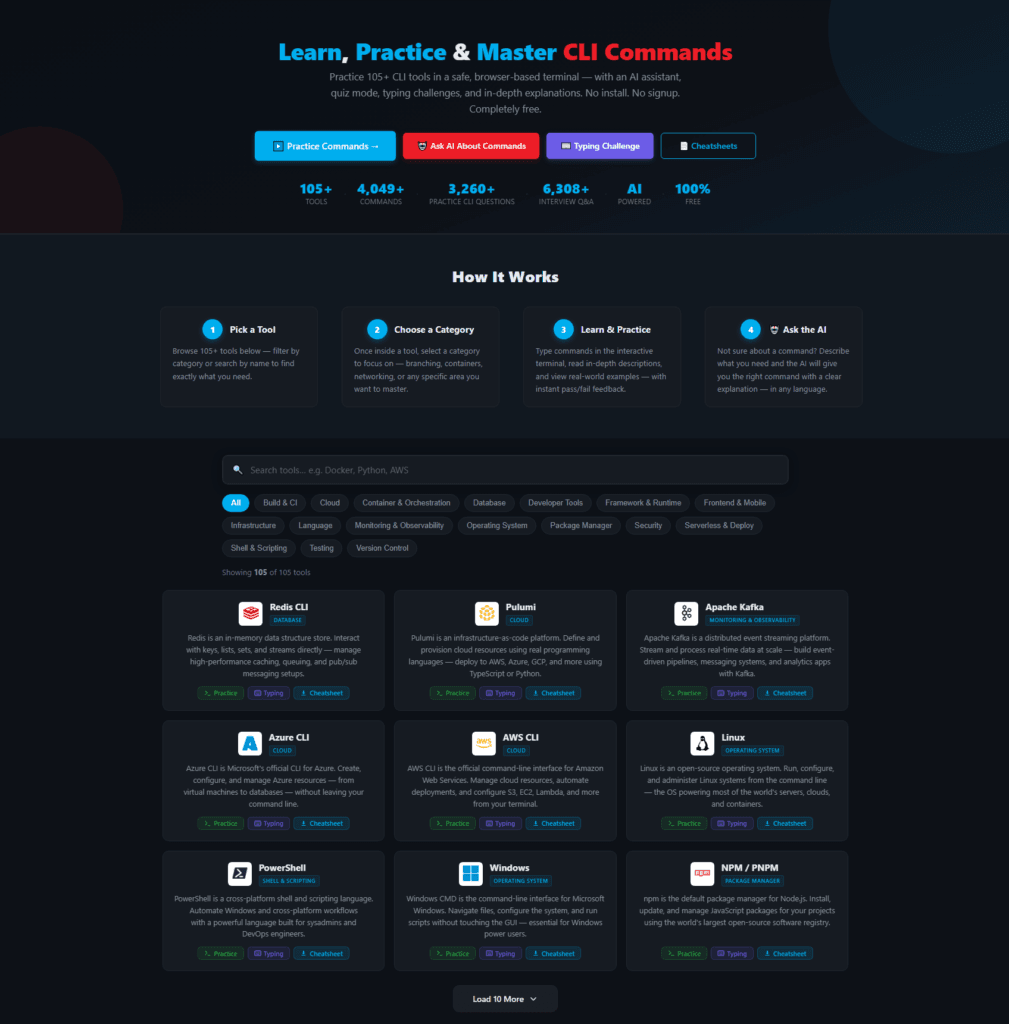
Command Playground covers over 105 command-line tools organized into a searchable, filterable grid. Each tool has its own icon, category label, short description, and a direct link to start practicing — which you can also share with anyone.
The tools span a wide range of categories:
- Version Control: Git, GitHub CLI, GitLab CLI, SVN, Mercurial, Bitbucket
- Containers & Orchestration: Docker, Kubernetes, Helm, Podman, OpenShift CLI
- Cloud & Infrastructure: AWS CLI, Azure CLI, Google Cloud SDK, Terraform, Ansible, Pulumi
- Programming Languages: Python, Node.js, Go, Cargo (Rust), Ruby, Java, Kotlin, TypeScript
- Databases: MySQL, PostgreSQL, MongoDB, Redis, SQLite, Elasticsearch
- Frontend & Frameworks: React, Next.js, Angular, Vite, Webpack, Storybook
- Package Managers: npm, Yarn, pip, Homebrew, Composer, NuGet, Bundler
- Linux & System Tools: Linux, curl, SSH, tmux, Vim
- DevOps & CI/CD: Jenkins CLI, ArgoCD, Flux CD, Serverless, Vercel, Netlify
- And many more: Kafka, Spring Boot, Flutter, Tauri, Electron, Expo, Gradle, Maven, and others
You can filter tools by category using chip-style filter buttons or search by name using the built-in search bar. The directory loads progressively as you scroll, keeping the experience fast even with 105+ tools.
The Interactive Terminal: Practice Without Risk
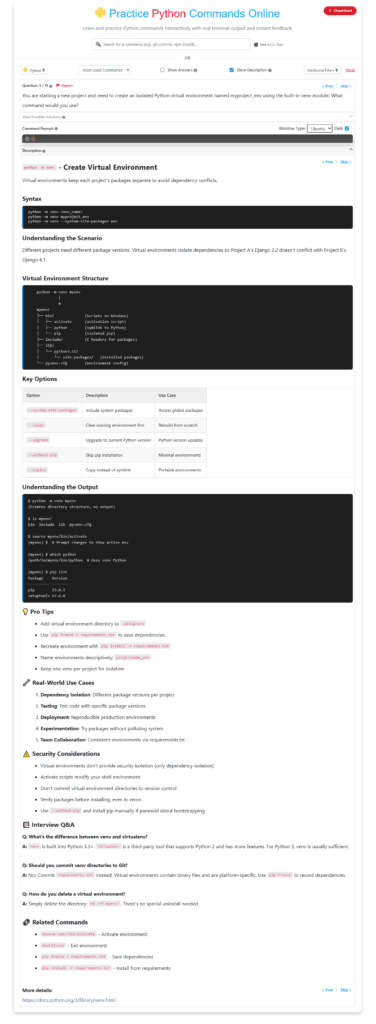
When you select a tool and a category, Command Playground opens an interactive terminal directly in your browser. This is not a real operating system console. It is a purpose-built practice environment where your input is matched against expected answers for each command.
Here is how it works:
- A question appears describing what you need to accomplish (for example, “Initialize a new Git repository in the current directory”).
- You type the command in the terminal input field.
- The system validates your answer instantly. Correct answers get a green success indicator. Incorrect answers show a hint to help you correct your input.
- Each command accepts multiple valid answers where applicable. For instance, both
git checkout -b featureandgit switch -c featuremight be accepted for the same question.
The terminal supports four visual styles — macOS, Windows, Ubuntu, and classic Linux — with dark and light themes. When you select a tool, the terminal automatically switches to match its native environment — PowerShell and Windows commands open a Windows-style terminal, while Linux and most other tools default to Ubuntu. You can override this manually, but the default immersion is automatic.
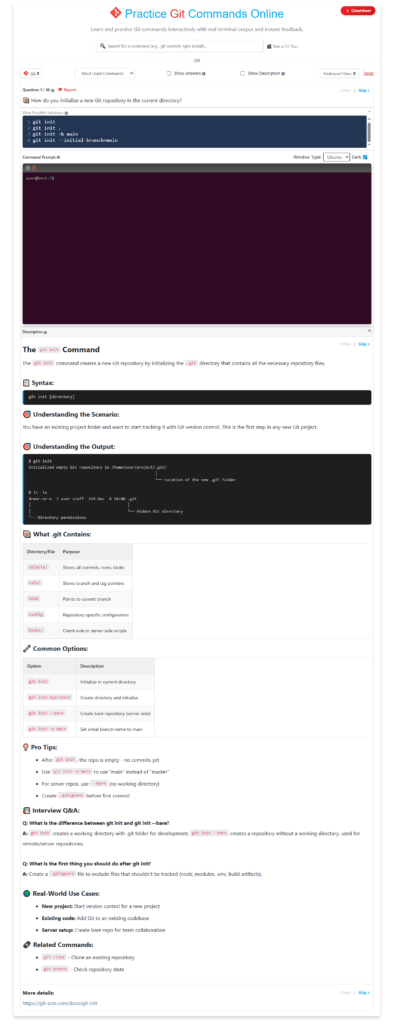
Every command in the system includes:
- Full syntax with all relevant flags and options
- Plain-English explanation of what the command does and when to use it
- Real-world examples showing the command in practical scenarios
- Common use cases organized by difficulty
- Interview tips to help you articulate what the command does during technical interviews
- Direct link to official documentation for deeper exploration
You can minimize the terminal panel to focus on reading the descriptions and examples, then expand it when you are ready to type. This lets you learn and practice without losing your place — especially useful on smaller screens where you want to dedicate more space to reading.
Learning Mode vs. Quiz Mode
Command Playground offers two distinct modes for every tool and category, each designed for a different stage of the learning process.
Learning Mode
Learning Mode is your practice space. You work through commands at your own pace with no pressure. When you get an answer wrong, the system shows a hint and lets you retry as many times as you need. Navigate between questions freely using keyboard shortcuts — Ctrl + Left/Right Arrow on Windows and Linux, Cmd + Left/Right Arrow on macOS — without touching the mouse.
This mode is ideal for:
- First-time exposure to a new tool
- Reviewing commands you have not used recently
- Reading through descriptions and examples in depth
Quiz Mode
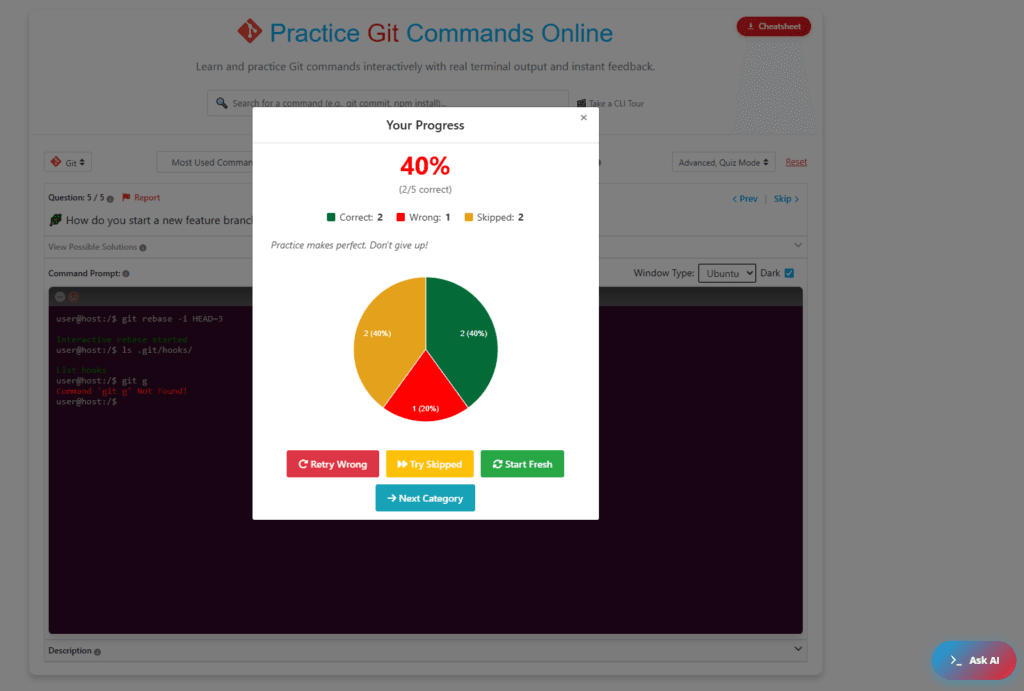
Quiz Mode simulates test conditions. It is timed, and wrong answers automatically advance to the next question — you do not get a second chance on the spot. At the end of the quiz, you receive a score report showing how many questions you got right, which ones you missed, and the correct answers.
The retry feature lets you re-attempt only the questions you got wrong, so you can focus your effort where it matters most instead of repeating the entire set.
This mode is ideal for:
- Testing yourself before an interview or certification exam
- Measuring how well you actually know a tool versus how well you think you know it
- Building speed and confidence under time pressure
Both modes support difficulty filtering (Basic, Intermediate, Advanced), randomized question order, and progress tracking per category. A “Most Used Commands” category is also available for every tool, highlighting the commands that matter most in day-to-day work.
CLI Typing Challenge: Learn Commands While You Type Them
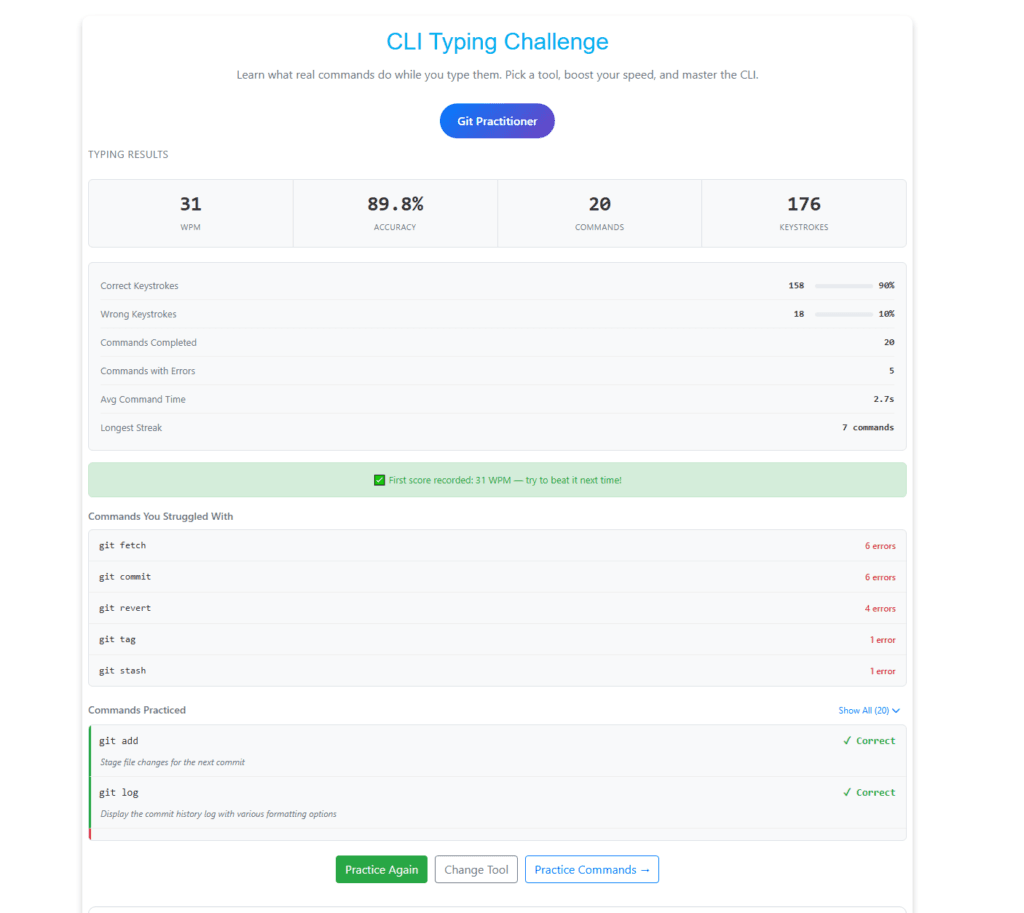
Knowing what a command does is one thing. Being able to type it quickly and accurately is another. The CLI Typing Challenge bridges that gap — learn what real commands do while you type them against the clock. Pick a tool, boost your speed, and master the CLI.
How It Works
- Pick any tool from the 105+ available (Git, Docker, Kubernetes, AWS CLI, etc.).
- Choose a time limit (1, 2, 3, or 5 minutes) and a difficulty filter (All Commands or Most Used).
- A countdown will start, then commands appear one at a time. Type each command exactly as shown — character by character, with real-time visual feedback on every keystroke.
- Correct characters highlight in green, wrong characters in red. When you complete a command correctly, the next one loads instantly.
What Gets Tracked
After each session, you get a detailed results screen showing:
- Words Per Minute (WPM) — Your typing speed for CLI commands
- Accuracy — Percentage of correct keystrokes out of total keystrokes
- Commands Completed — How many commands you typed correctly in the time limit
- Commands With Errors — How many commands had at least one wrong keystroke
- Correct and Wrong Keystrokes — Raw keystroke counts
- Longest Streak — Most commands typed correctly in a row without any errors
Your personal bests are saved in your browser, so you can track your improvement over time.
Rank System
Your performance earns you a rank based on your WPM and accuracy:
- Ninja — Exceptional speed and accuracy (highest rank)
- Speed Demon — Very fast typing with high accuracy
- Pro — Strong performance across both metrics
- Practitioner — Solid, consistent typing
- Learner — Building skills, room to improve
- Beginner — Just getting started
Ranks are shown as colored badges on the results screen, making it easy to track your progress. You can also share this page on social media — LinkedIn, X (Twitter), Reddit, or WhatsApp and challenge others to beat your score.
Why Typing Speed Matters
Interview whiteboard sessions, live coding screens, and day-to-day terminal work all reward speed. The CLI Typing Challenge builds the muscle memory so that when someone asks “show me how to rebase” during a pair programming session, your fingers already know the way. It is a different skill from knowing the command — it is being fast at executing it.
AI Assistant: Ask for Any Command in Any Language
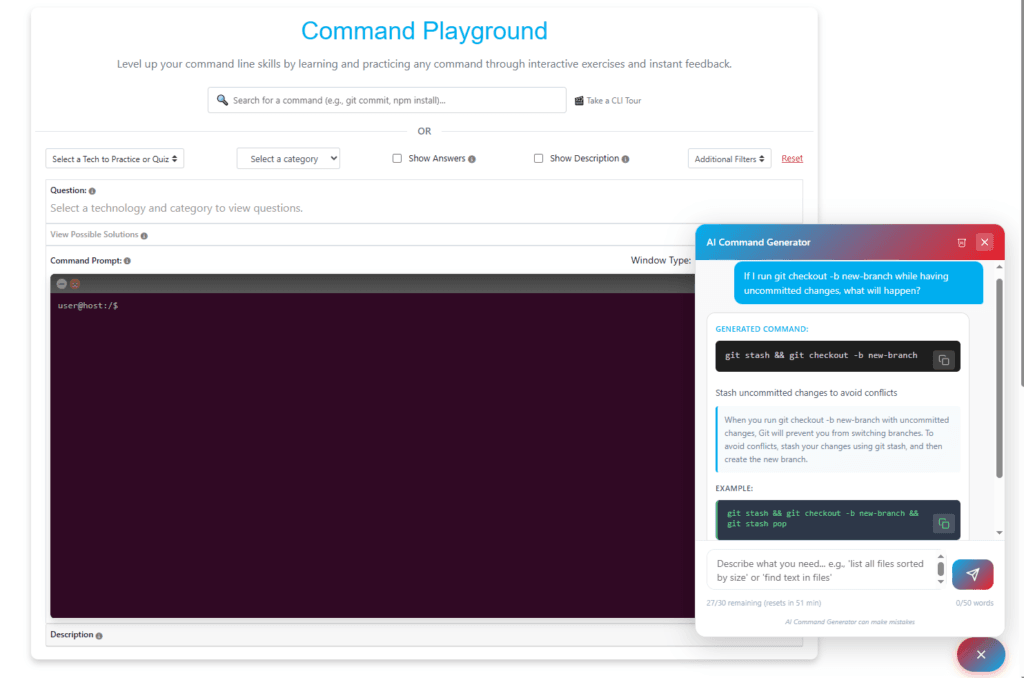
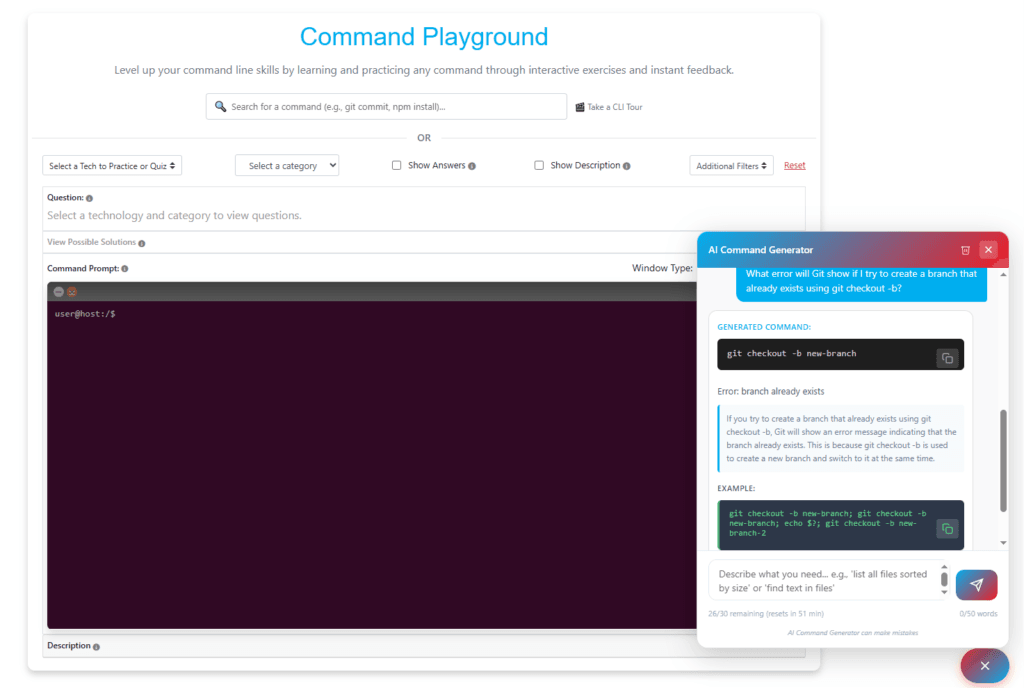
Sometimes you know what you want to do but not which command does it. The AI Assistant solves that problem. It is accessible from any tool page through a floating chat widget and works across all 105+ tools in the platform.
You can ask questions in natural language — in English, Hindi, Spanish, German, French, or any language you speak. Describe what you want to accomplish, and the assistant returns the right command along with a clear explanation.
A few examples of how you might use it:
- “How do I squash the last 3 commits in Git?”
- “Create a Docker container that maps port 8080 to 80”
- “Show me how to list all S3 buckets in AWS CLI”
- “Comment compresser un dossier avec tar?” (French)
- “Wie erstelle ich einen neuen Branch in Git?” (German)
The assistant supports follow-up conversations with session context. If you ask “how do I create a new branch” and then follow up with “now push it to remote,” the assistant understands the context and responds accordingly. You can clear the local conversation at any time by clicking the clear Chat button, which clears the session history.
The AI Assistant is purpose-built for CLI commands — it only answers command-related questions, nothing else. No stories, no essays, no general chat. You ask a CLI question, you get the command with an explanation. That is it.
105 Downloadable Cheatsheet PDFs
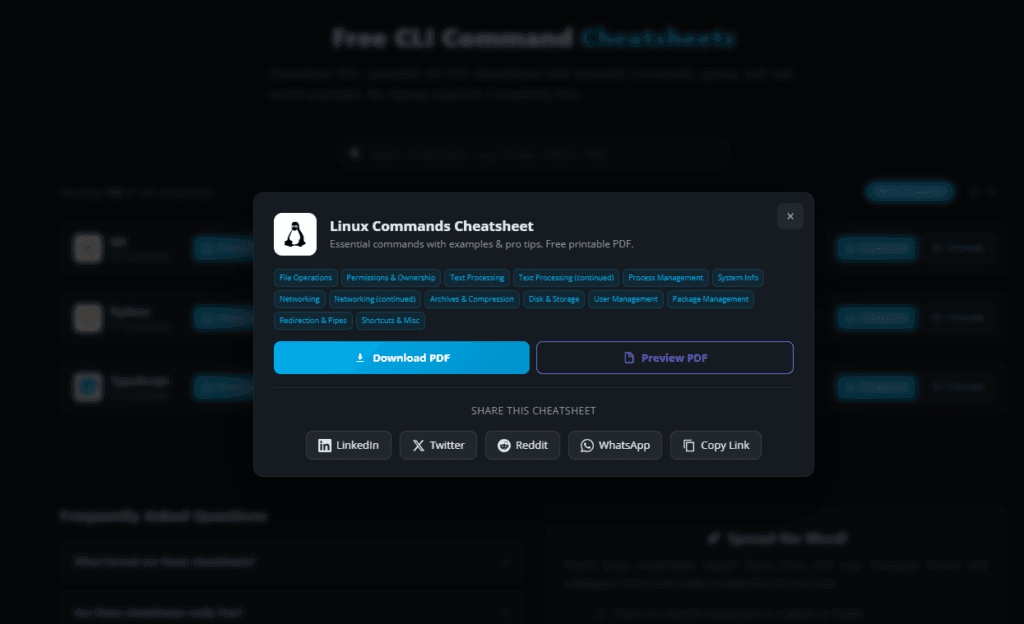
Every tool in Command Playground has a matching cheatsheet available as a downloadable PDF. These are formatted A4 documents designed for quick reference — printable, shareable, and useful whether you are at your desk or reviewing on the go.
The cheatsheet grid page shows all 105 PDFs in a searchable layout with:
- Inline preview so you can view the contents before downloading
- One-click download for each PDF
- Social sharing buttons to share individual cheatsheets on LinkedIn, X (Twitter), Reddit, and WhatsApp
- Copy link for pasting into Slack, Discord, or email
Each cheatsheet includes the tool’s most important commands organized by category, along with examples and brief explanations. They are designed to complement the interactive practice — study the cheatsheet for a quick overview, then jump into the playground to practice hands-on.
More Features That Make a Difference
Beyond the core terminal, AI assistant, and cheatsheets, Command Playground includes a set of features designed to make the learning experience smoother and faster.
Keyboard Shortcuts
In Learning Mode, use Ctrl + Left/Right Arrow (or Cmd + Left/Right Arrow on macOS) to jump between questions instantly. No need to touch the mouse. This works on any device with a physical or connected keyboard, including iPads with external keyboards.
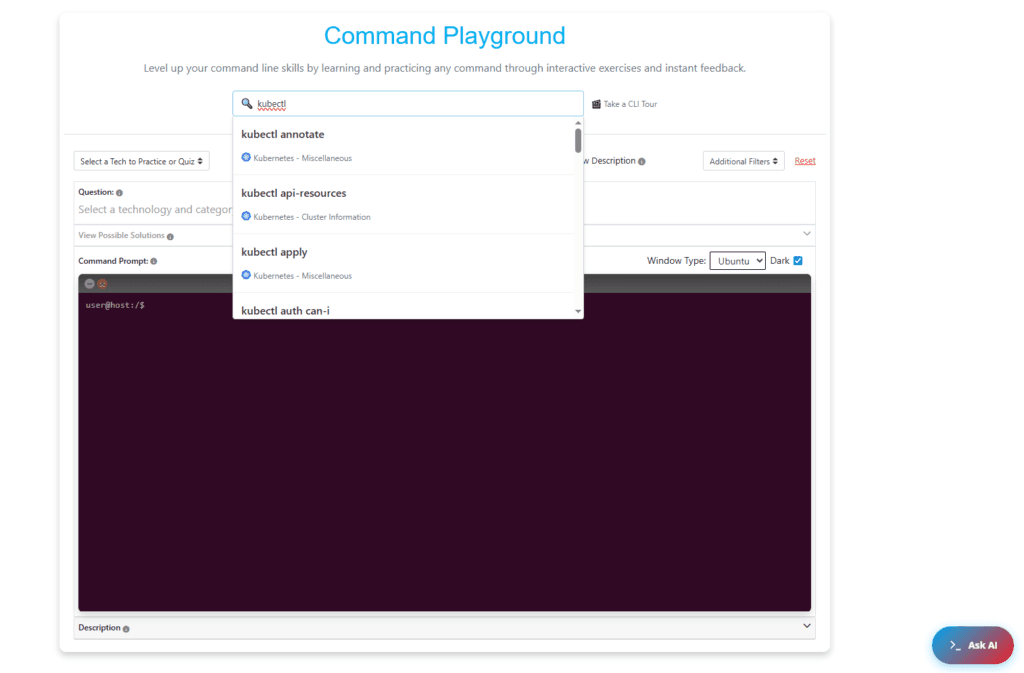
Command Search
Looking for a specific command within a tool? The built-in search lets you find it instantly across all categories without scrolling through everything.
Difficulty Filters
Filter questions by Basic, Intermediate, or Advanced to match your current skill level. Start with the basics and work your way up as your confidence grows.
Randomized Questions
Enable the random filter to shuffle questions in any category. This prevents you from memorizing the order and ensures each session tests your real knowledge.
Interview Preparation
Every command in the system includes interview-ready Q&A — not just what the command does, but how to explain it in a technical interview. Common questions, expected answers, and tips for articulating your knowledge. Combined with Quiz Mode (to test under pressure) and the CLI Typing Challenge (to demonstrate speed), this gives you a complete interview preparation toolkit for command-line knowledge.
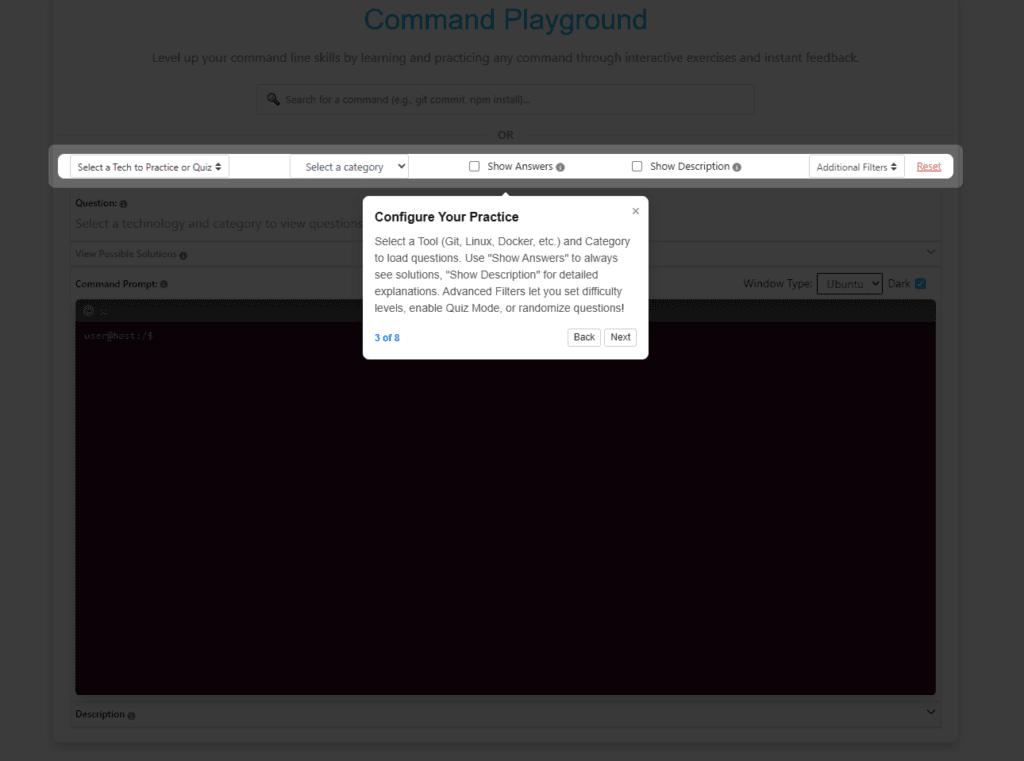
Guided Product Tour
First-time visitors see an optional onboarding tour that walks through the key features of the interface — the terminal, the description panel, the AI assistant, and the navigation controls. It runs once and stays out of the way after that.
Feedback and Ratings
After you have spent some time on the platform, a quick feedback popup invites you to share your experience. Pick an emoji, tag the features you like, and optionally leave a suggestion. It takes about five seconds and directly shapes what gets built next. You can also report issues with specific commands using the Report button, or suggest new tools through the feedback form on the landing page.
Community Comments
Every tool page, cheatsheet, typing challenge session, and the tools directory includes a comments section. Ask questions, share tips with other learners, or let the team know what you think. Admin replies are marked so you know when the team responds.
Shareable Links
Every tool, every cheatsheet, and every typing challenge session has its own direct URL that you can share with anyone. Send a colleague straight to the Git practice terminal, share a Docker cheatsheet in your team Slack, or post your typing challenge results on social media. Everything is one click away — for you and for anyone you share it with.
Who Is It For?
Command Playground is built for anyone who works with — or wants to learn — command-line tools.
Beginners Learning Something New
Getting started with Git, Docker, or Kubernetes? Practice here first without installing anything or configuring environments. If you get stuck, ask the AI assistant.
Students Preparing for Certifications
Studying for AWS, Azure, Kubernetes (CKA/CKAD), or Terraform certifications? Practice the exact CLI commands that appear in exams and real-world scenarios. Use Quiz Mode to simulate test conditions.
Developers Refreshing Their Memory
Have not used a tool in a while? Get back up to speed in minutes without reading through pages of documentation. The “Most Used Commands” category for each tool highlights what you need most.
Interview Candidates
Technical interviews often test command-line knowledge. Every command includes interview tips explaining how to describe the command’s purpose and behavior. Use Quiz Mode to test yourself under pressure, and the CLI Typing Challenge to build the speed that impresses during live coding sessions.
Teams and Educators
Use Command Playground as a shared practice environment when onboarding new engineers or running hands-on CLI workshops. Everyone can practice the same set of tools at their own pace without needing local setup. Share direct links to specific tools and your team can start practicing immediately.
Anyone Who Just Needs the Right Command
Even if you are not actively learning, the AI assistant is there whenever you need a quick answer. Describe what you want in any language and get the command with an explanation.
Start Practicing
Command Playground is live and completely free to use. Here is where to begin:
- Browse all 105+ tools and pick one to start practicing. Filter by category, search by name, and jump straight into the interactive terminal.
- Try the CLI Typing Challenge to build real muscle memory. Pick a tool, set a time limit, and see how fast and accurately you can type CLI commands. Earn ranks from Beginner to Ninja.
- Download cheatsheet PDFs for any tool you want a quick-reference document for. All 105 cheatsheets are available for free with inline preview and one-click download.
- Ask the AI assistant for any command in any language. Open the chat widget from any tool page and describe what you want to accomplish.
- Share with your team — every tool, cheatsheet, and typing challenge has a direct link you can send to anyone.
No account to create. No software to install. No paywall. Open your browser and start building command-line fluency today.
Command Playground is built and maintained by TechnoScripts. New tools, commands, and features are added regularly based on real-world usage and community feedback. If you have a suggestion or want to request a new tool, use the feedback form on the Tools Directory page or leave a comment on any page.

No comment